Stavka
Personal finances in Stavka: a step-by-step manual
Personal finances are a separate part of Stavka for your own money: statements are loaded by themselves, transactions are categorized by merchant, and the budget and funds show where you stand. The screenshots are from a test account with made-up data.
Getting started in three steps
- Upload your statements or turn on email delivery. Transactions are created by themselves.
- Categorize what is waiting for a decision. The category is remembered for the merchant, so after that almost everything happens by itself.
- Set up a plan and funds, then follow where you stand on the Overview.
Investing step by step
From an empty account to Stavka showing you by itself how much you have invested, what you bought and what it is worth today. For someone just starting out, whether they keep their company in Stavka too or only their personal finances.
- A payment to your broker is not an expense. It does not go into the budget and does not reduce a fund: the money just moved from one of your accounts to another.
- “Total you have” and funds are kept at the amount invested. What your securities are worth today is shown next to it, not instead of it.
- Stavka keeps records. It does not advise what to buy and does not calculate capital gains tax.
1. Turn on personal finances
- In the account menu, open Settings, export and backup.
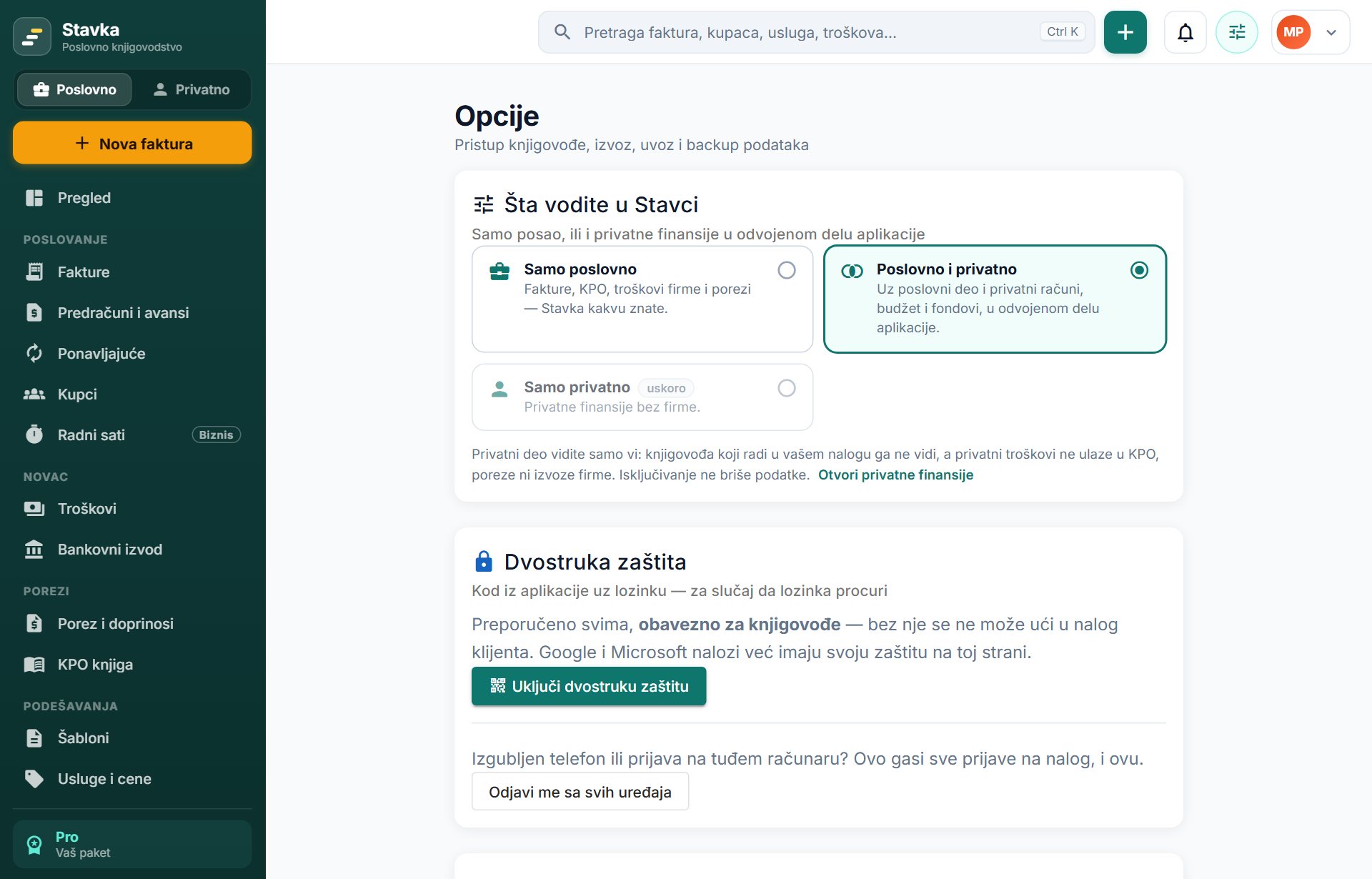
- In the What you track in Stavka section, choose Business and personal.
- A Business / Personal switch appears in the left menu. Click Personal.
2. Add your bank accounts
- Open Statements and drag a bank statement into the field. The account is read from the statement itself, and Stavka offers Add account and upload.
- Do this for the account you invest from: the dinar account, and the foreign currency account too if you send foreign currency to your broker.
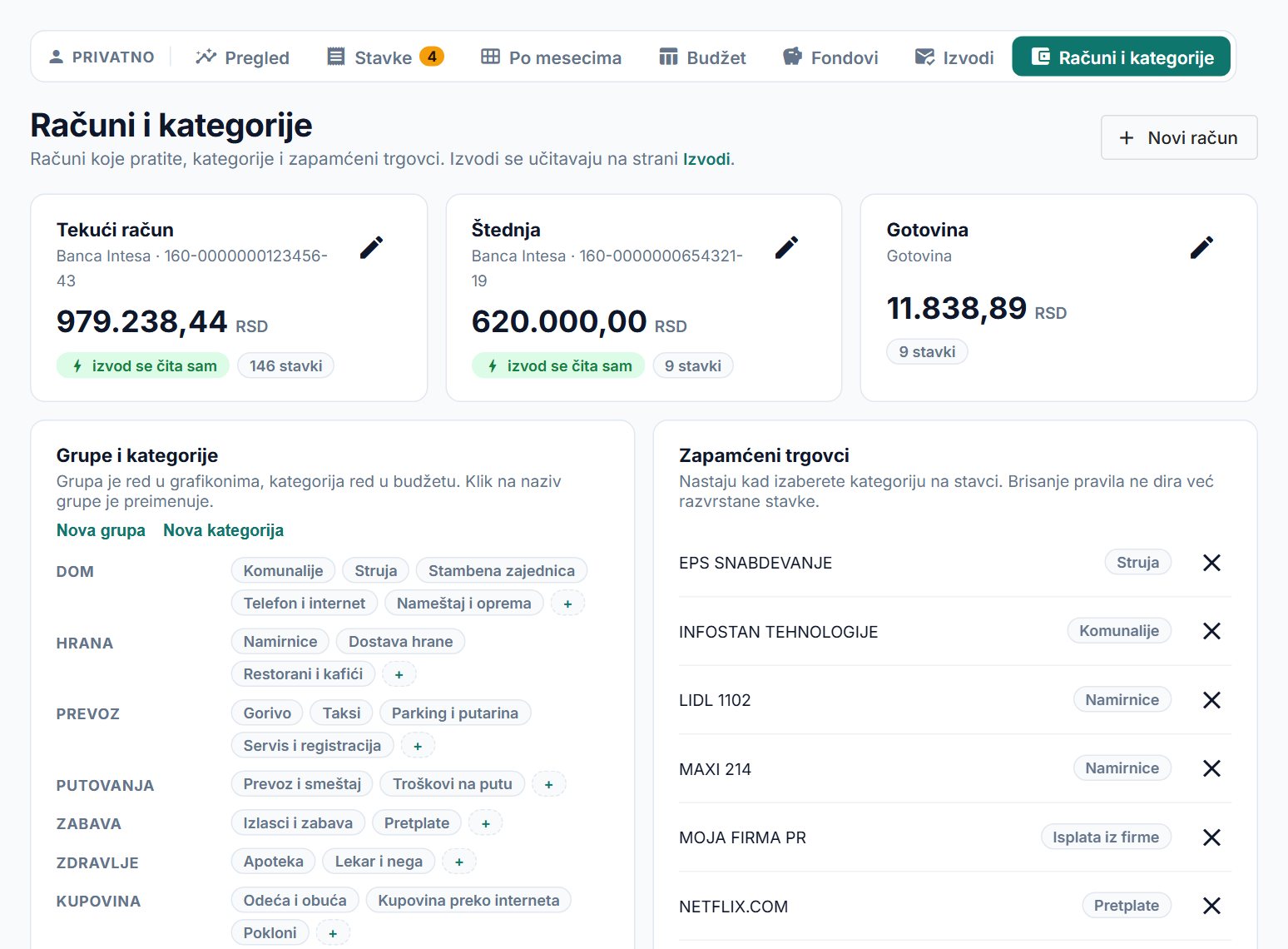
- Without a statement: Accounts and categories → New account → type Bank account → name, currency, bank and account number.
3. Create a broker account
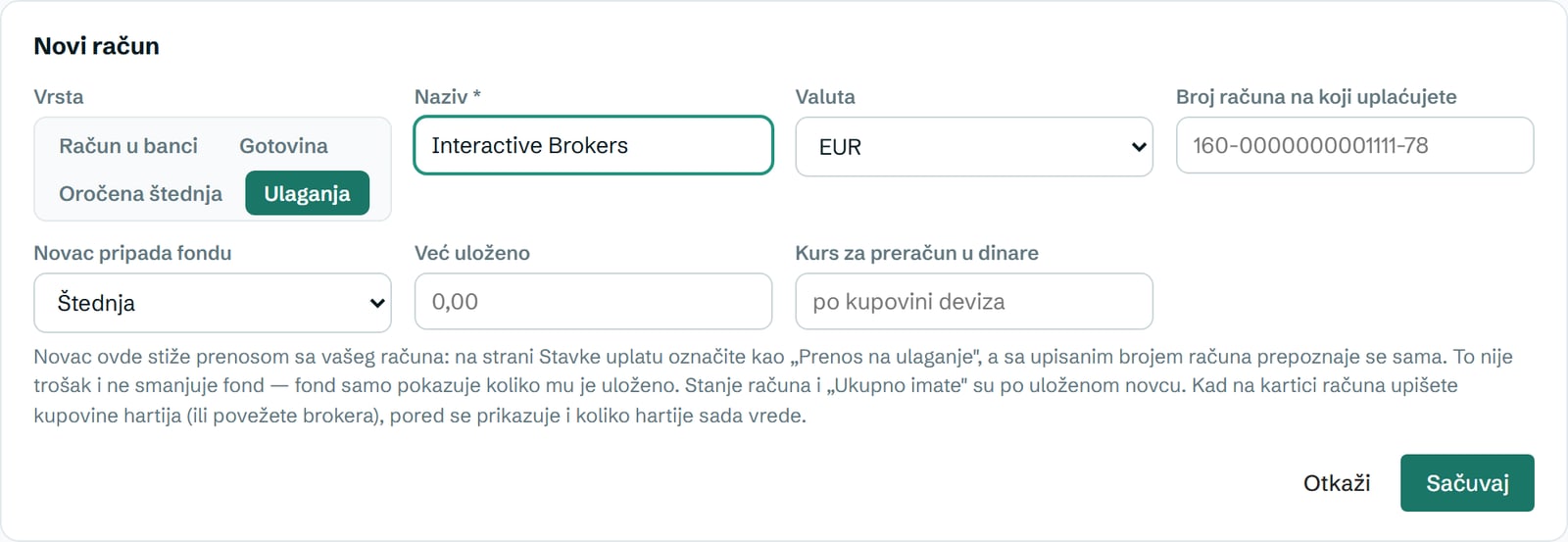
- Accounts and categories → New account → type Investments.
- Name: e.g. “Interactive Brokers”. One account in Stavka is one account with the broker, and it can hold several different securities.
- Currency: the base currency of your broker account (e.g. EUR).
- Money belongs to fund: the fund you invest from, if you have one (next step).
- Already invested and Balance as of: how much was in that account on that day. A transfer up to that day that you mark later is already included in that amount and is not counted twice. If you are starting from zero, leave it empty.
4. The fund you invest from (optional)
- Funds → New fund.
- Name: e.g. “Savings”. Percent of every income: how much of each income payment goes into the fund (e.g. 10). It can be 0, and then you fill the fund by hand.
- Save, then on the broker account choose that fund in the Money belongs to fund field.
5. Mark the payment to your broker as a transfer
- Open Transactions and find the payment to your broker, on the account the money left from (often the foreign currency one).
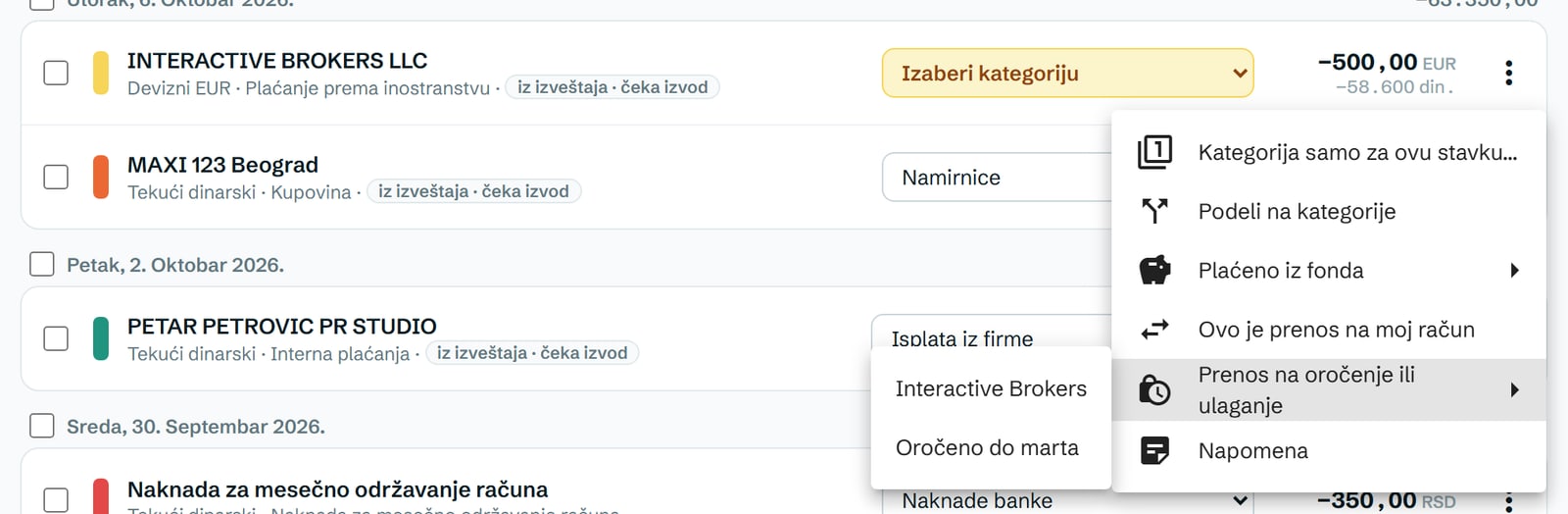
- Open the transaction menu (three dots) → Transfer to deposit or investments → choose the broker account.
- The other side is recorded on the broker account by itself, for the same amount. In the Fund money menu you can say that this particular payment belongs to a different fund.
- If the statement hasn’t arrived yet: New entry → the account the money left from, date, amount, and mark it as a transfer to the broker account. When the statement with the same payment arrives (same amount, up to 5 days apart), Stavka merges them by itself.
6. Record a securities purchase
- Accounts and categories → on the broker account card click Add a securities purchase (later: Securities and purchases).
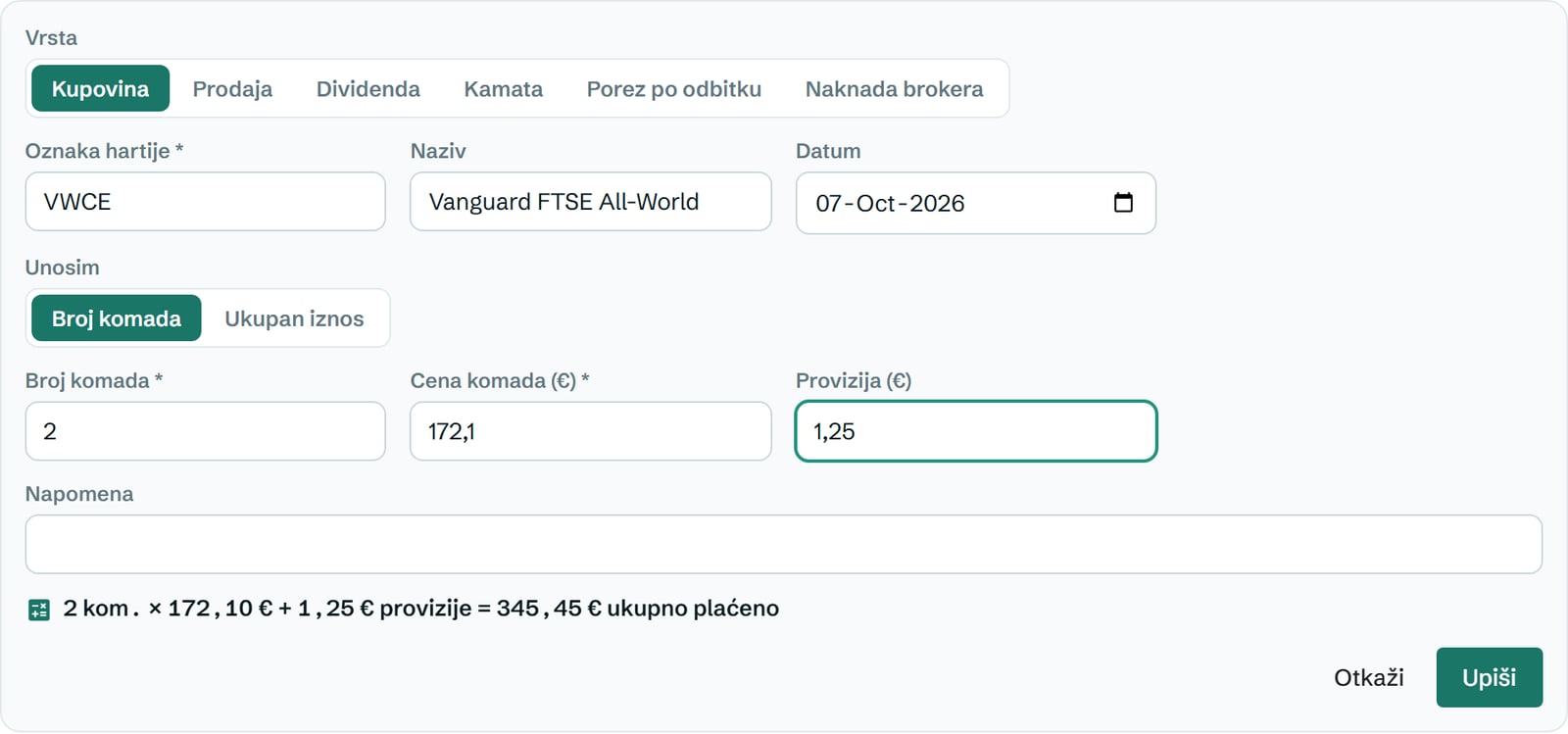
- Add purchase → type Purchase.
- Ticker (e.g. VWCE), Date, then choose what you enter: Quantity or Total amount. With the total amount, Stavka works out the quantity by itself.
- Price per unit and Commission from the broker’s confirmation. The line below the form shows the calculation before you save.
- Save. The money paid in is split into cash at the broker and securities.
7. Track value against what you invested
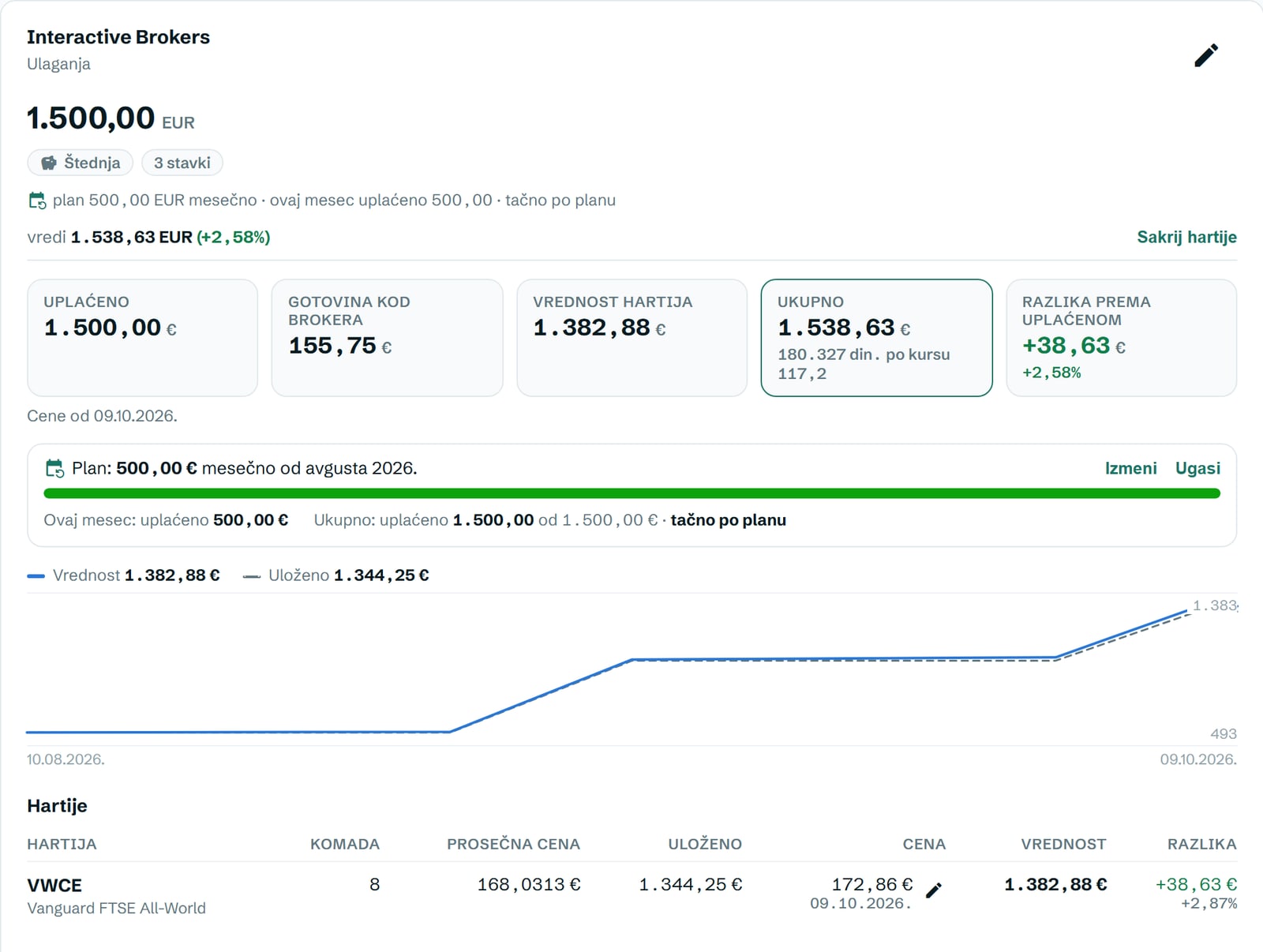
- The broker account card shows: Paid in, Cash at broker, Securities value, Total and Difference vs paid in, in the account currency and in dinars.
- In the Securities table, for each security: quantity, average price, invested, last price, value and difference.
- You enter a new price with the pencil next to the price (Enter a new price). Until there is a price, the value is calculated at the last purchase price, and the screen says so.
- The chart shows the amount invested in securities and their value over time.
8. Interactive Brokers: purchases and prices arrive by themselves
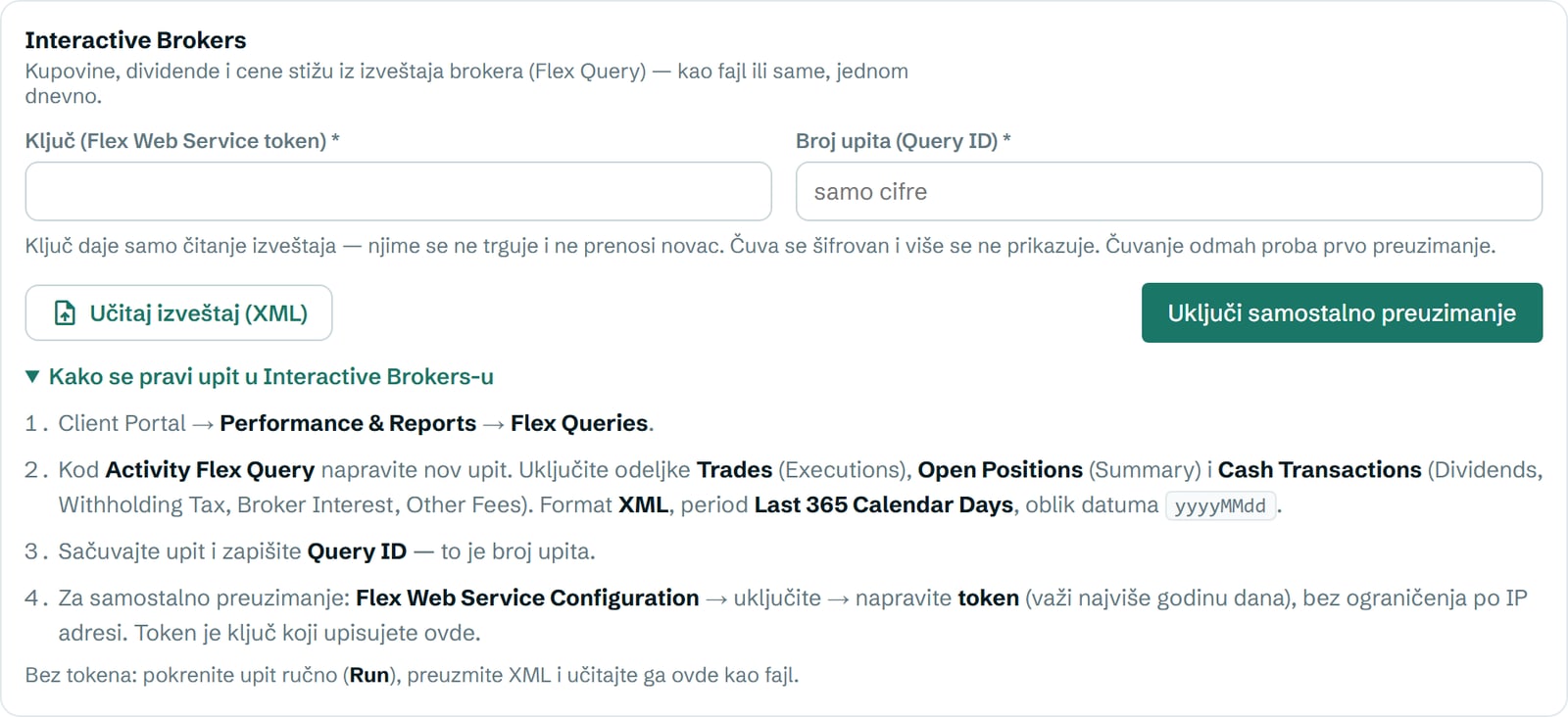
- In IBKR: Performance & Reports → Flex Queries → a new Activity Flex Query with the sections Trades (Executions), Open Positions (Summary) and Cash Transactions. Format XML, period Last 365 Calendar Days, date format yyyyMMdd. Write down the Query ID.
- For automatic download: Flex Web Service Configuration → enable it and create a token, with no IP address restriction.
- In Stavka, on the broker account card, the Interactive Brokers section: enter the Key and the Query number → Turn on automatic download. The first download runs right away.
- Without a token: run the query by hand (Run), download the XML and click Upload report (XML).
9. Set up an investment plan
- On the securities card, click Set up an investment plan.
- Enter the monthly amount and the month the plan starts → Save plan.
- Stavka shows how much has been paid in this month, how much is still missing, and whether overall you are behind, ahead or exactly on plan.
10. The whole picture on the Overview
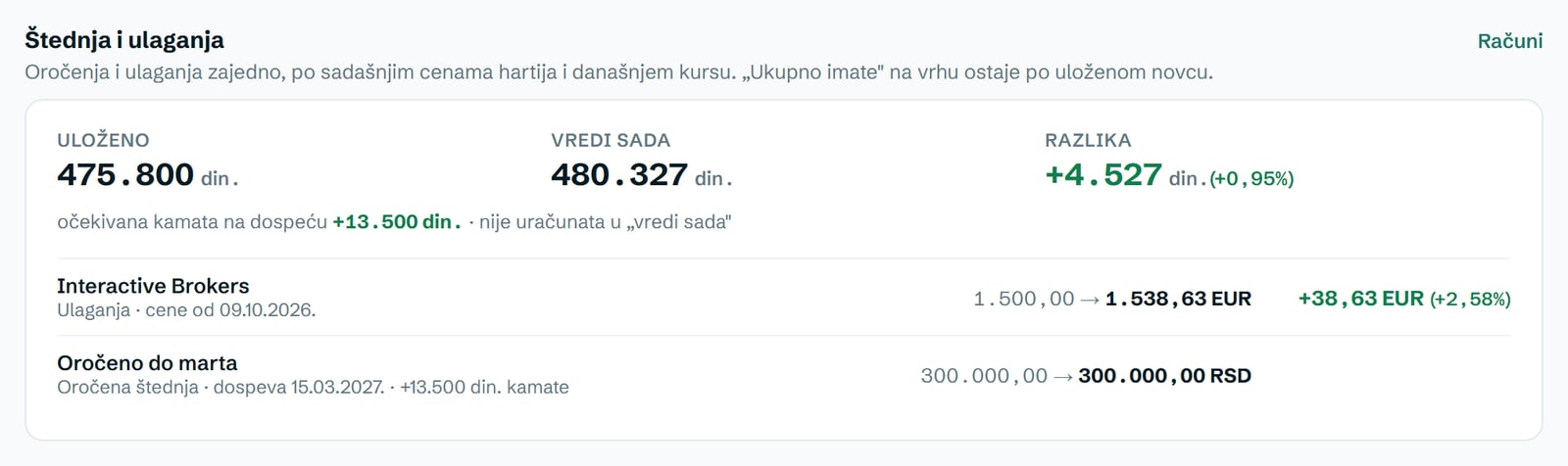
- The Savings and investments block adds up term deposits and investments: Invested, Worth now and Difference, in dinars at today’s exchange rate.
- A term deposit is worth what was deposited until it matures; the expected interest is shown separately and is not in “worth now”.
- Total you have at the top stays at the amount invested, so daily price changes don’t move your budget.
If something doesn’t add up
- The broker account shows zero even though you paid in: the payment isn’t marked as “Transfer to deposit or investments” (step 5).
- The fund went down after a payment to the broker: the payment was categorized as an expense. Change it back to a transfer.
- The broker reports more units than Stavka: the report doesn’t cover all purchases. Choose a longer period in the query.
- The price doesn’t change: the query period is last month, or automatic download is not turned on.
- Options and futures are not tracked; the report skips them and says so in a message. Stocks, ETFs, funds and bonds are tracked.
Turning it on
Personal finances are a separate part of the app, free with every plan. They are off by default, and only you can see them.
- Open Settings and in What you track in Stavka choose Business and personal. The Turn on personal finances button on the card on the business Overview does the same.
- A Business / Personal switch appears at the top left. You use it to move from one part to the other.
- An accountant working in your account does not see the personal part. Personal expenses don’t go into the KPO ledger, taxes or company exports.
- Turning it off doesn’t delete any data. When you turn it on again, everything is there.
Overview
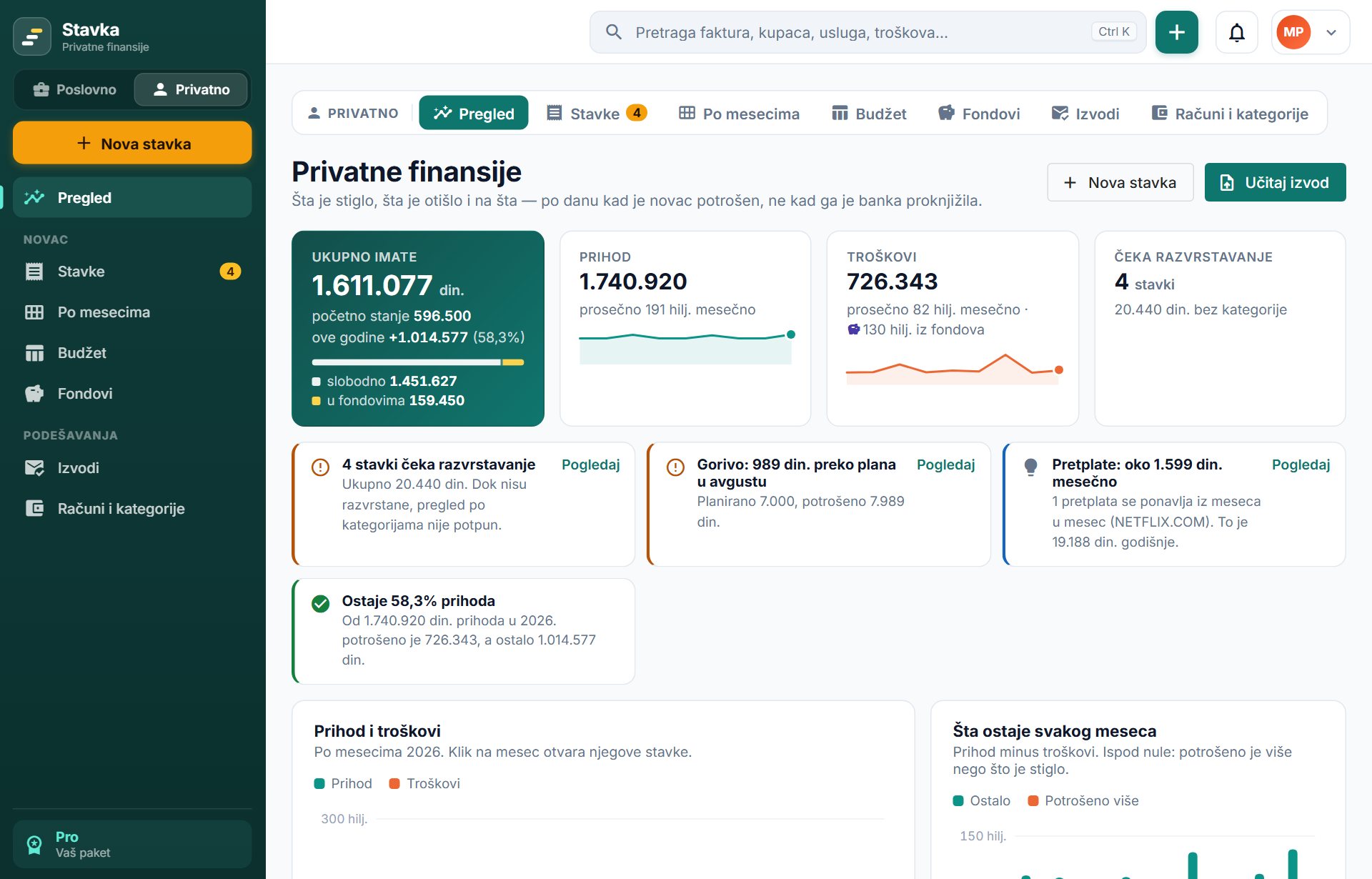
One page with the whole picture: how much you have, what came in, what went out and on what.
- Total you have is the sum of all accounts: the balance from the last statement plus activity after it (transactions waiting for a statement). The bar below splits that money into free, in funds and, if you have them, deposited and invested.
- Income and Expenses show the total for the year and the monthly average. The part of expenses paid from funds is listed separately.
- Tip cards warn you about transactions without a category, an exceeded plan and recurring subscriptions.
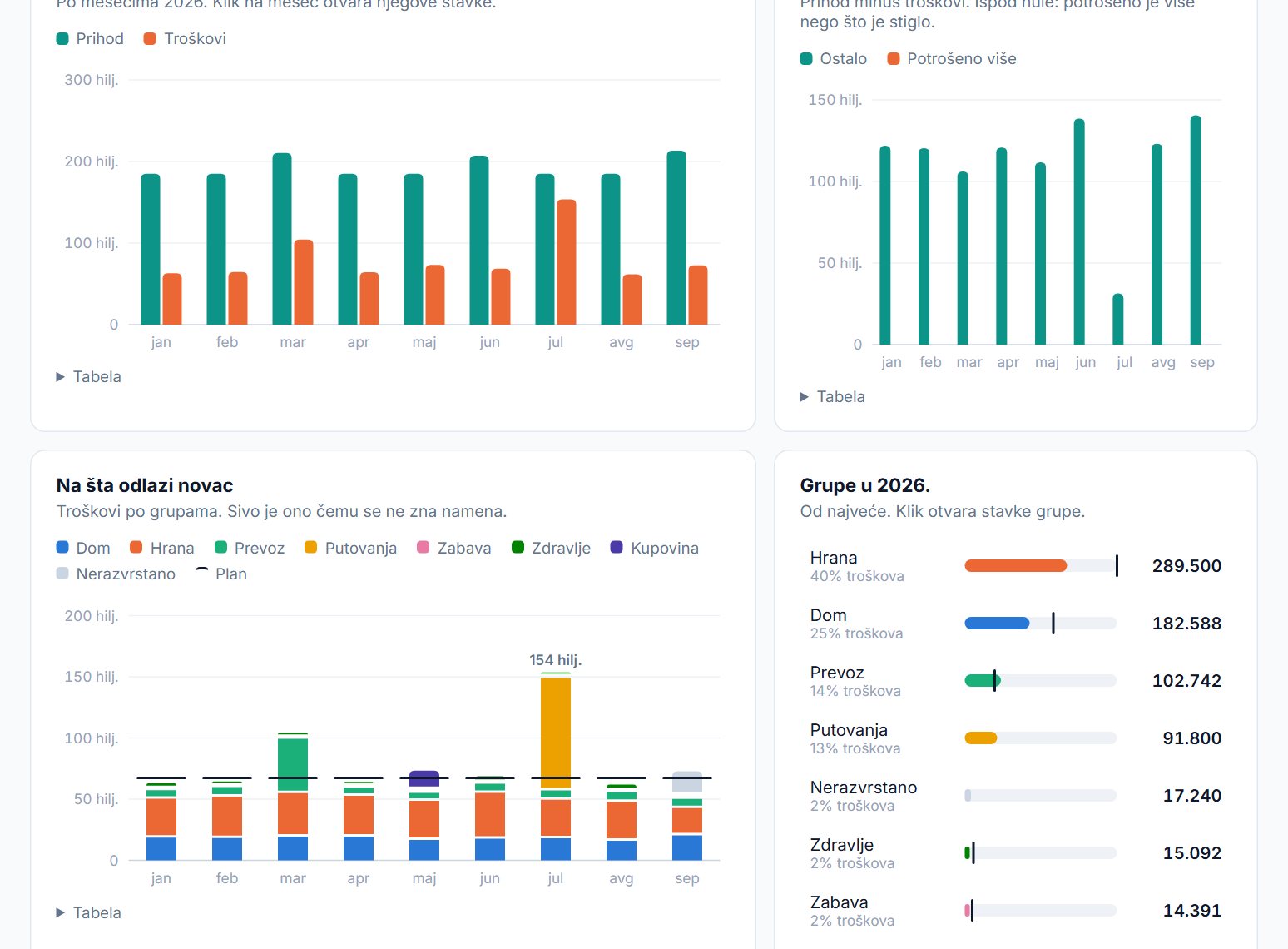
- The charts below show income and expenses by month, what is left, and where the money goes by group. Clicking a month or a group opens those transactions.
- Everything is counted by the day the money was spent, not the day the bank posted it.
Statements
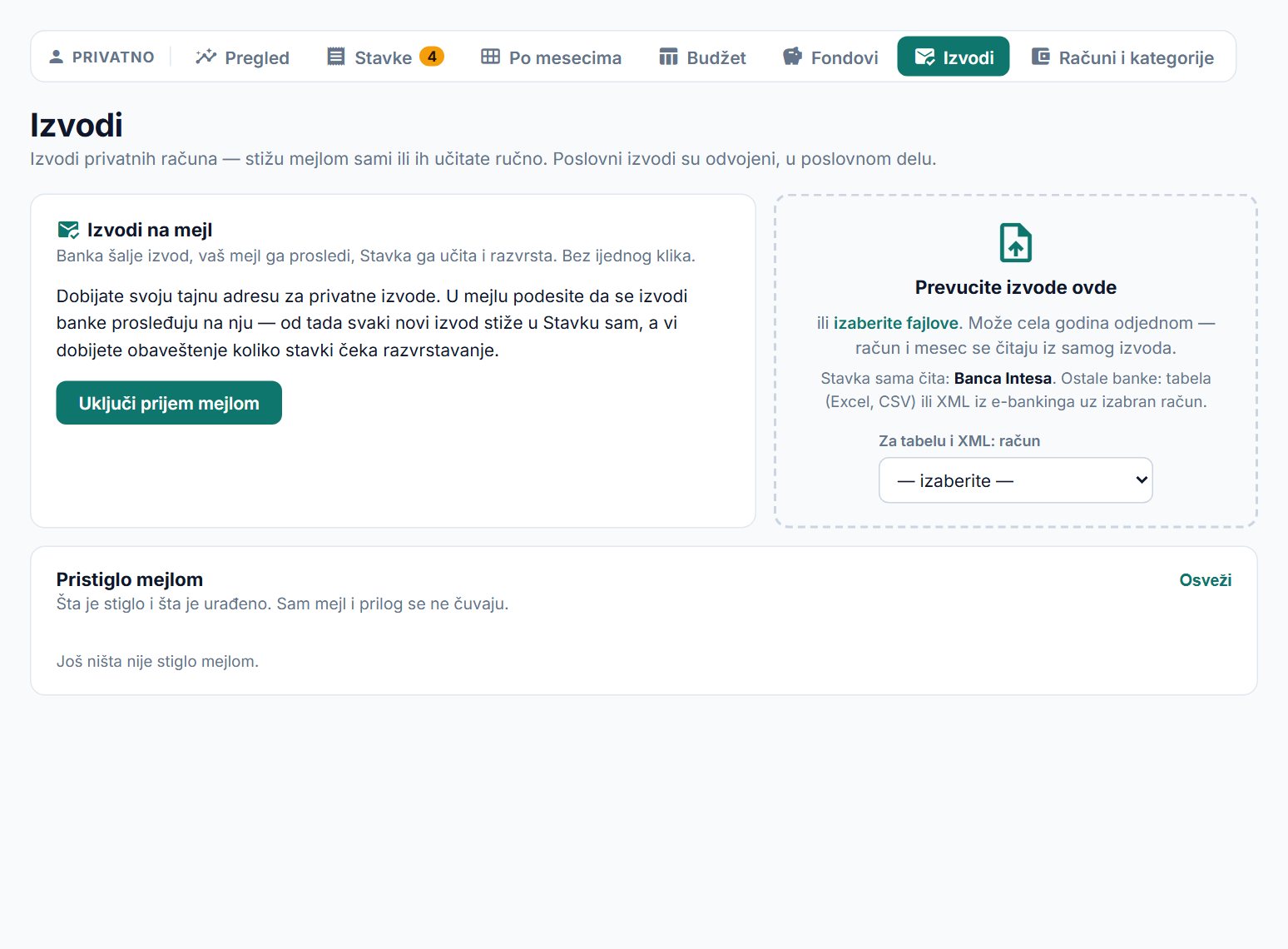
Transactions come from bank statements: they arrive by email by themselves, or you upload them by hand.
- By email: click Turn on email delivery and you get your own secret address. In Gmail, set up forwarding to it and a filter for your bank’s statements (step-by-step instructions are on the page itself). From then on every statement arrives by itself, and you get a notification of how many transactions are waiting to be categorized.
- By hand: drag the statements into the field on the right. A whole year at once is fine, because the account and month are read from the statement itself.
- Banca Intesa (PDF statement) is read automatically. For other banks, upload a spreadsheet (Excel, CSV) or XML from e-banking and choose the account.
- Activity after the last statement (Banca Intesa): in e-banking, save the Izveštaj transakcija (transaction report) for a period of your choice, as PDF or Excel, and upload it here. These transactions are temporary (from report · awaiting statement): they go into the budget and the account balance right away, and when the monthly statement arrives, the transaction from the statement replaces them and keeps your category choice. Months you already have a statement for are skipped.
- The same statement uploaded twice doesn’t create duplicate transactions.
- A statement for a company account doesn’t go into the personal part. It goes into the business part.
Transactions and categorizing
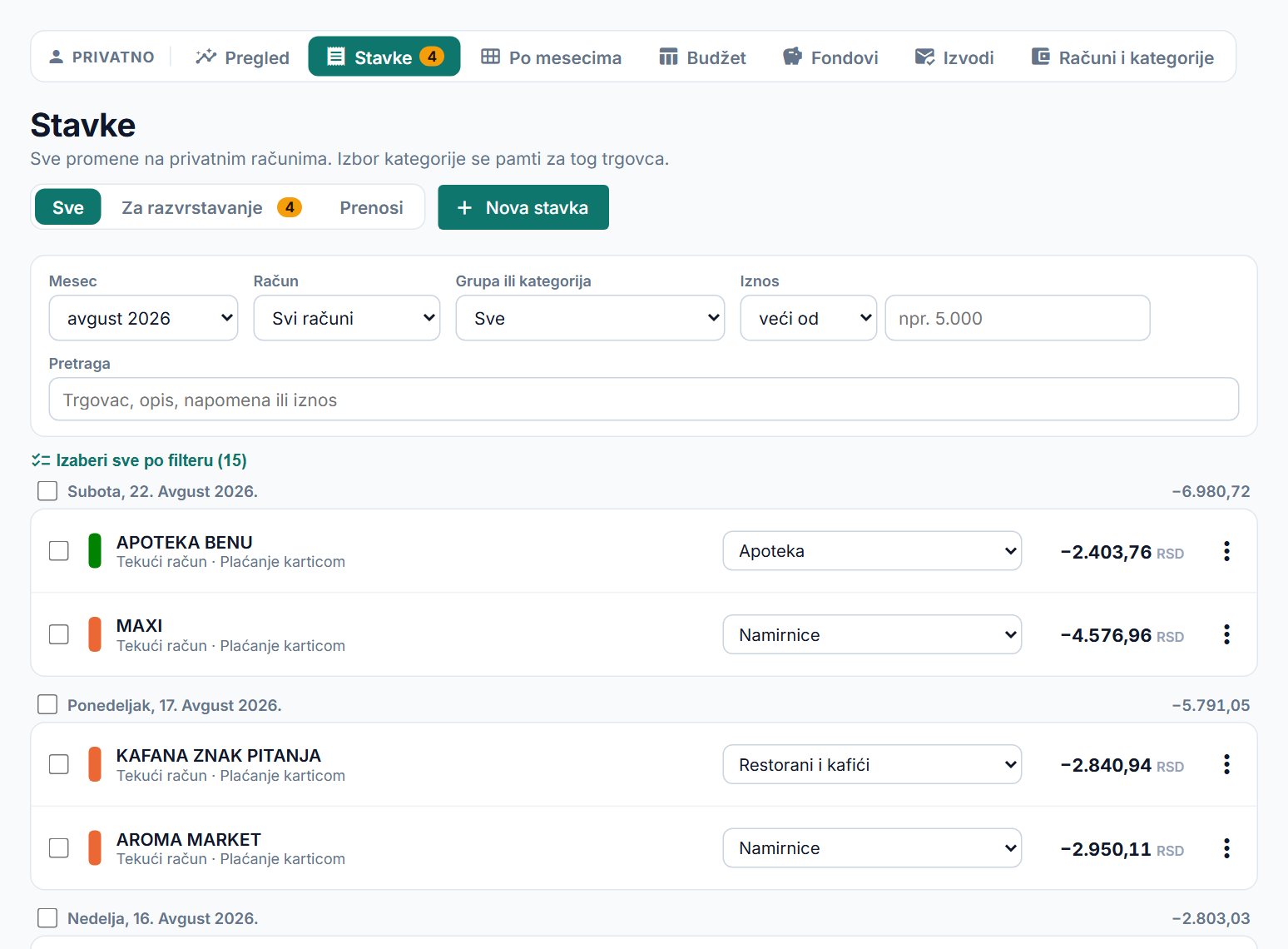
All account activity, by day. Stavka categorizes most of it by itself, and you categorize the rest, once per merchant.
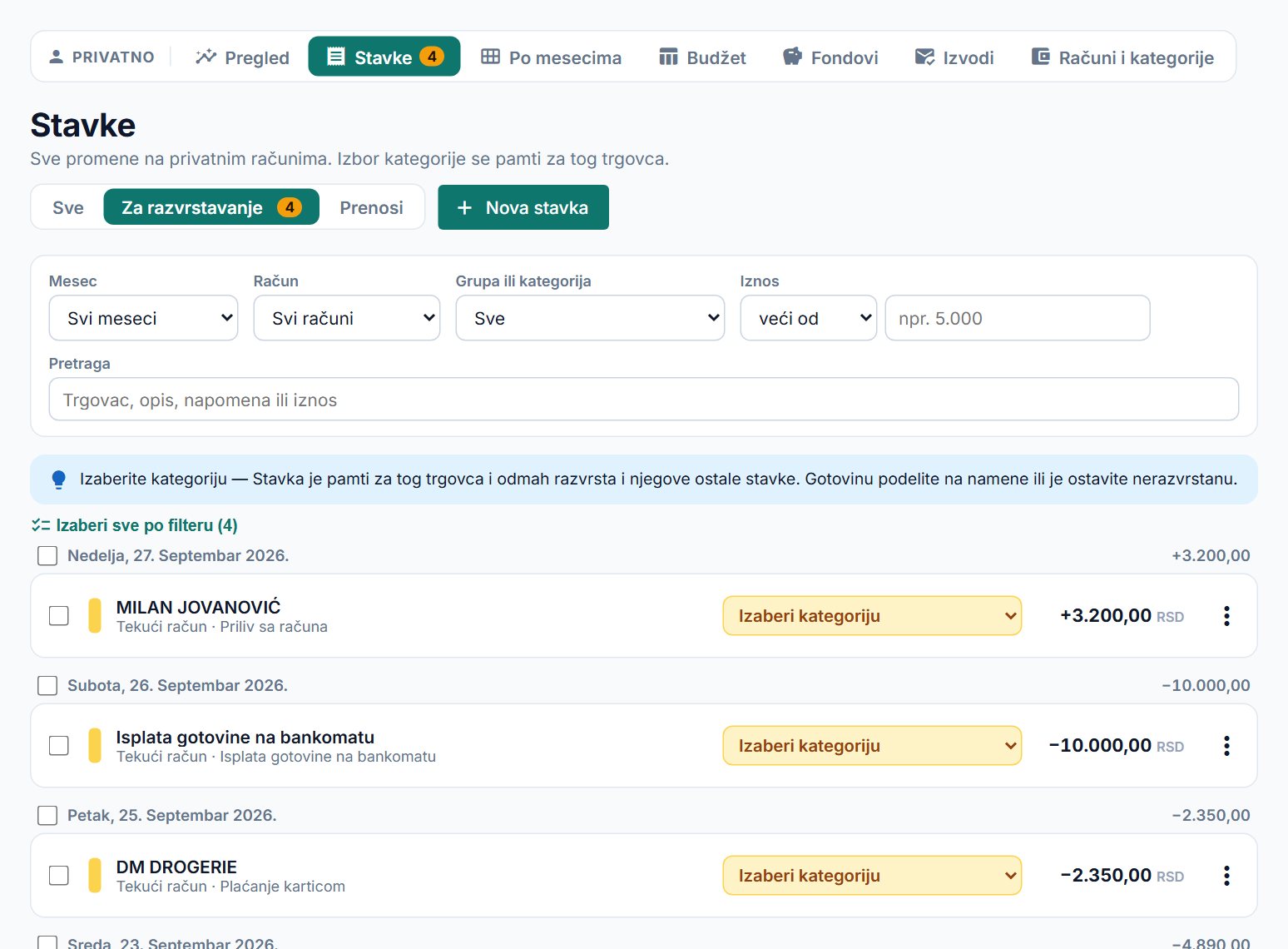
- Choose a category in the drop-down on the transaction. The choice is remembered for that merchant: their other transactions are categorized right away, as are those from future statements.
- The To categorize tab shows only what is waiting for your decision. The number on it is the count of such transactions.
- For an exception, open the ⋮ menu → Category for this transaction only…, and the next choice changes only that transaction.
- A payment in can go into an income category or be an expense refund. A refund is money returned for a purchase and reduces that expense. An expense can’t go into income.
- A transfer between your own accounts is recognized by the account number and counts as neither an expense nor income (the Transfers tab). If it isn’t recognized, choose This is a transfer to my account in the ⋮ menu.
- A payment into a term deposit or to a broker is also a transfer, not an expense: in the ⋮ menu choose Transfer to deposit or investments and the account. The same field is in the New entry form too. When you take the money back, choose Withdrawn from deposit or investments on the payment.
- Filters: month, account, group or category, and amount more than / less than. Search looks through the merchant, the transaction description (e.g. “Plaćanje karticom”, card payment), the note or an exact amount.
- Enter cash payments by hand (New entry, account Cash). You can edit and delete a manual entry, but not a transaction from a statement.
- You can enter a card purchase by hand right away, so the budget and funds are accurate before the end of the month. When the statement arrives, Stavka merges the manual entry with the same one from the statement by itself (same account and amount, up to 5 days apart): your choice of category, fund and note stays, and the manual entry disappears, so the expense isn’t counted twice. A manual entry the statement hasn’t confirmed is labeled not on statement — check the amount and the account.
Splitting and bulk categorizing
One transaction can go to several purposes, and many transactions can go into one category at once.
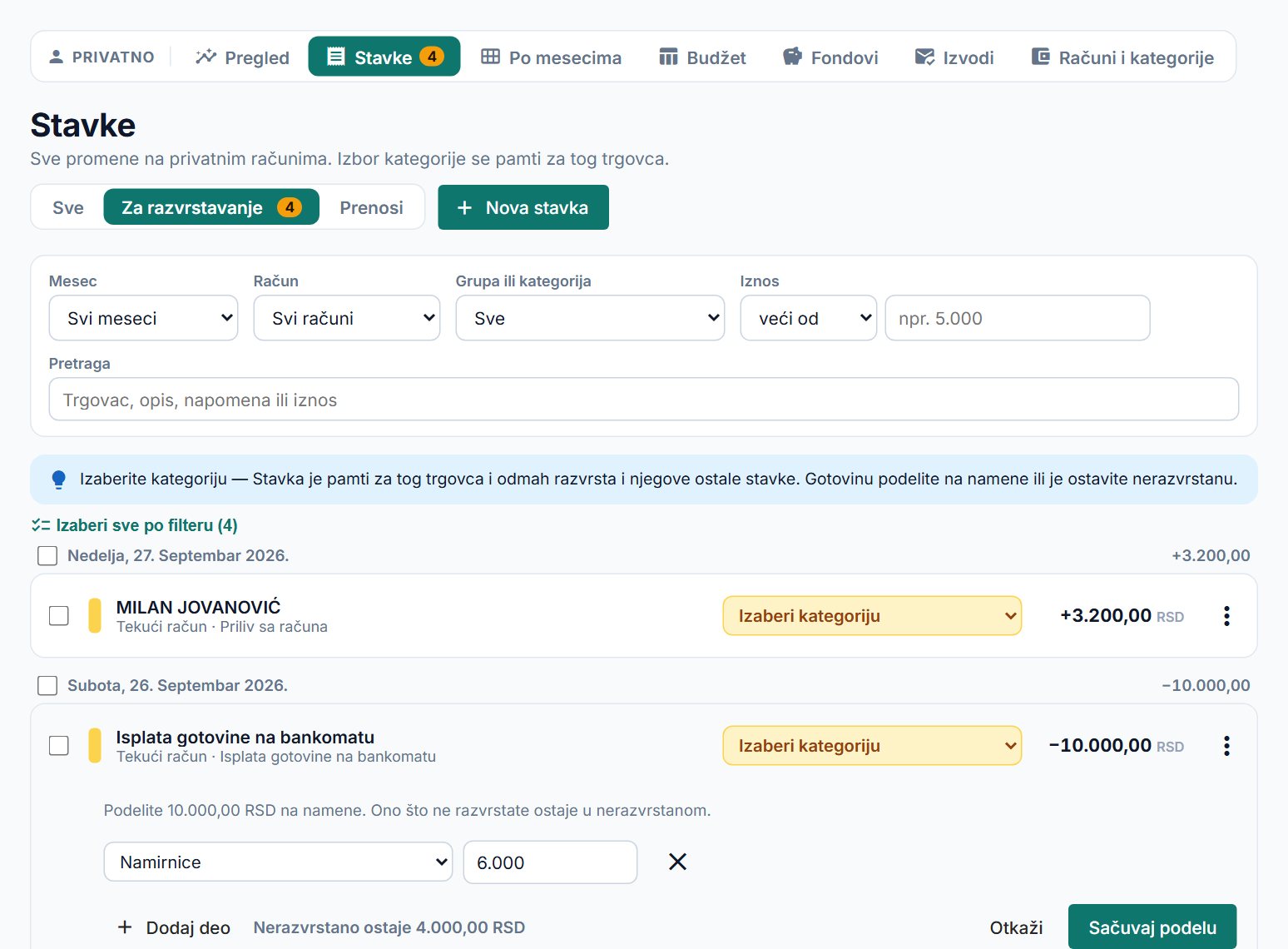
- Splitting: in the ⋮ menu choose Split into categories and enter the parts (e.g. out of 10,000 dinars withdrawn, 6,000 for groceries). Whatever you don’t assign stays uncategorized.
- Splitting is most useful for cash withdrawals, because that way you see what the cash went on.
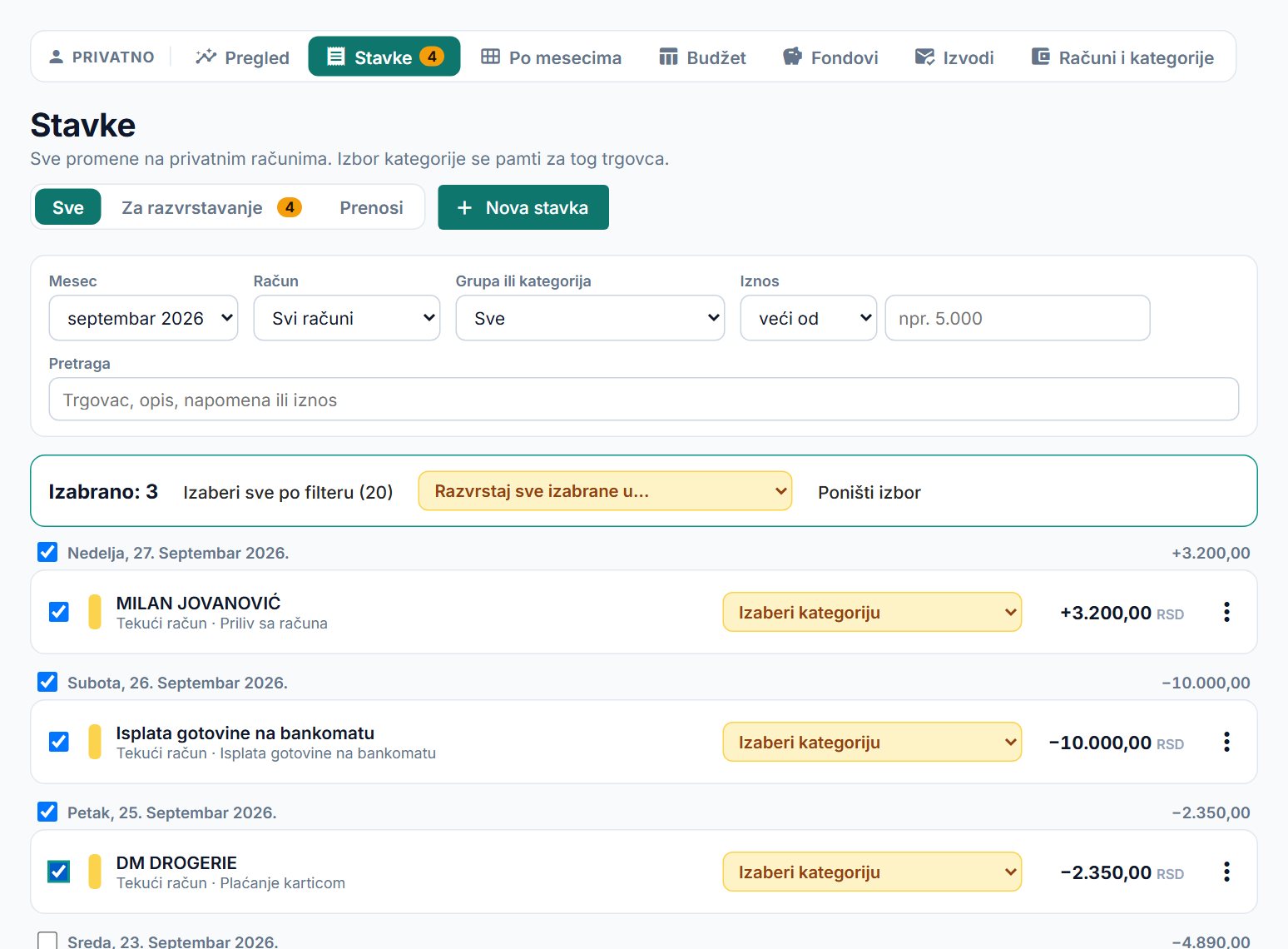
- In bulk: tick the transactions (or a whole day with the tick next to the date). In the bar at the top, in the Categorize all selected as… menu, choose the category.
- Select all matching filter selects all transactions that match the filter, including those not yet loaded on the page (up to 5,000).
- If payments in are among the selected ones, the menu also offers income categories. Expenses are skipped when you choose an income category, and a message says how many.
By month
How much goes on what, month by month.
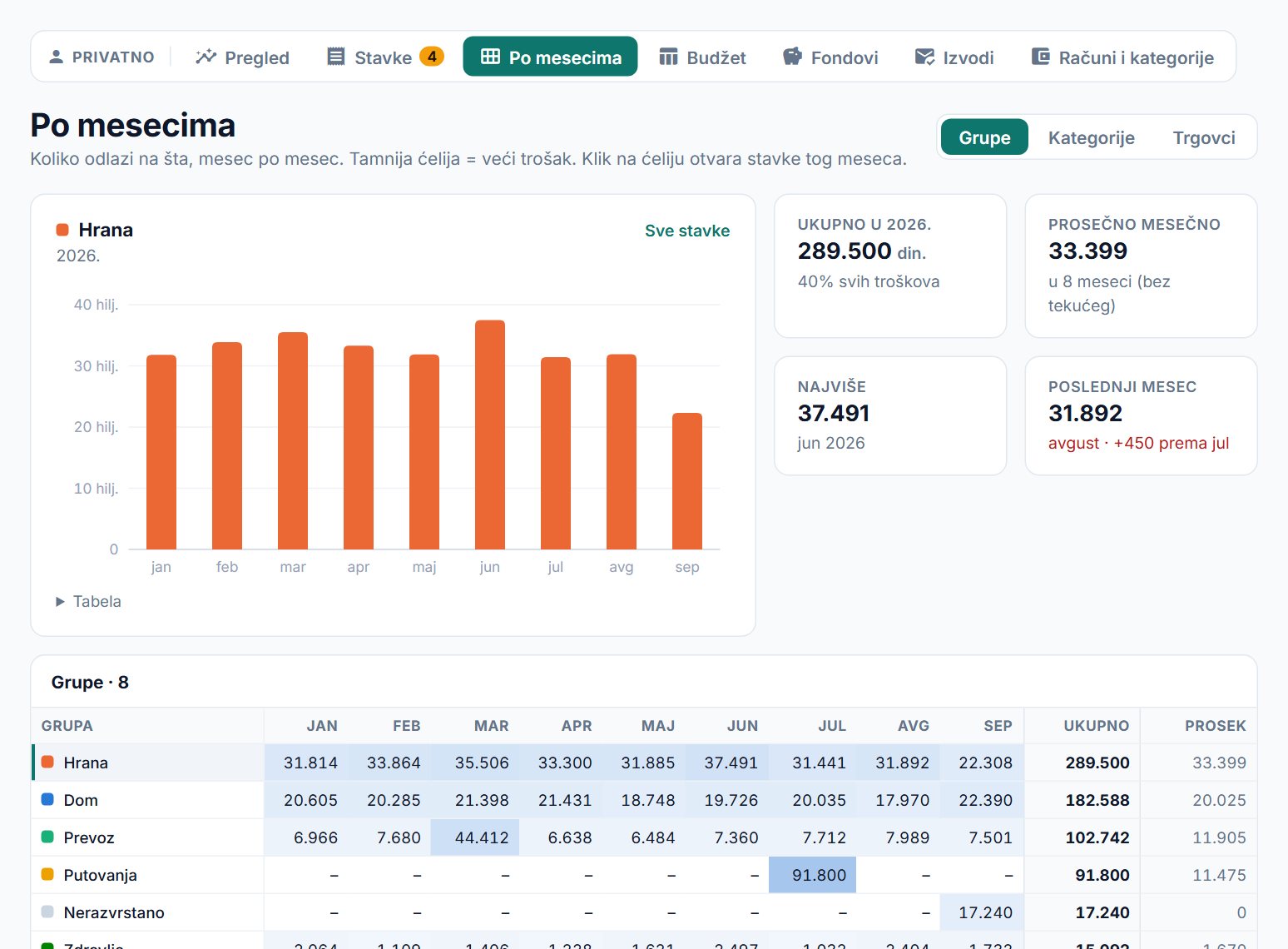
- At the top right you choose the Groups, Categories or Merchants view.
- A darker cell means a bigger expense. Clicking a cell opens that month’s transactions.
- Clicking a table row changes the chart and the tiles (total, average, highest, last month).
- The amounts are expenses in dinars. Refunds reduce them.
Budget
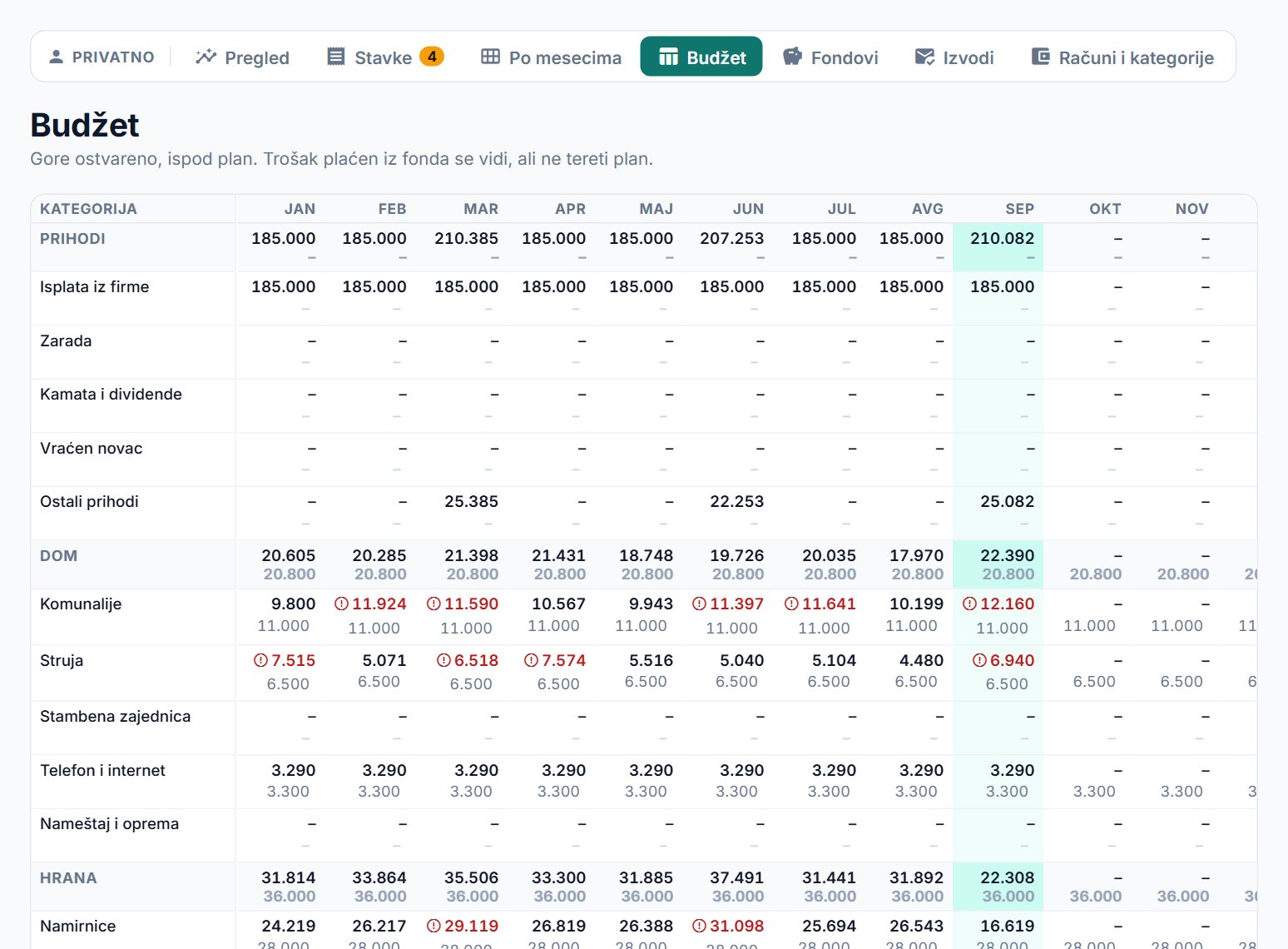
A plan per category and month, right next to the actual figures.
- Each cell shows the actual amount on top and the plan below. You enter the plan in the field below the actual amount.
- The arrow at the end of the row copies the last amount entered to the end of the year. That way the plan is set in a few seconds.
- Red with a ! sign means the plan has been exceeded.
- An expense paid from a fund is visible, but doesn’t count against the plan.
Funds
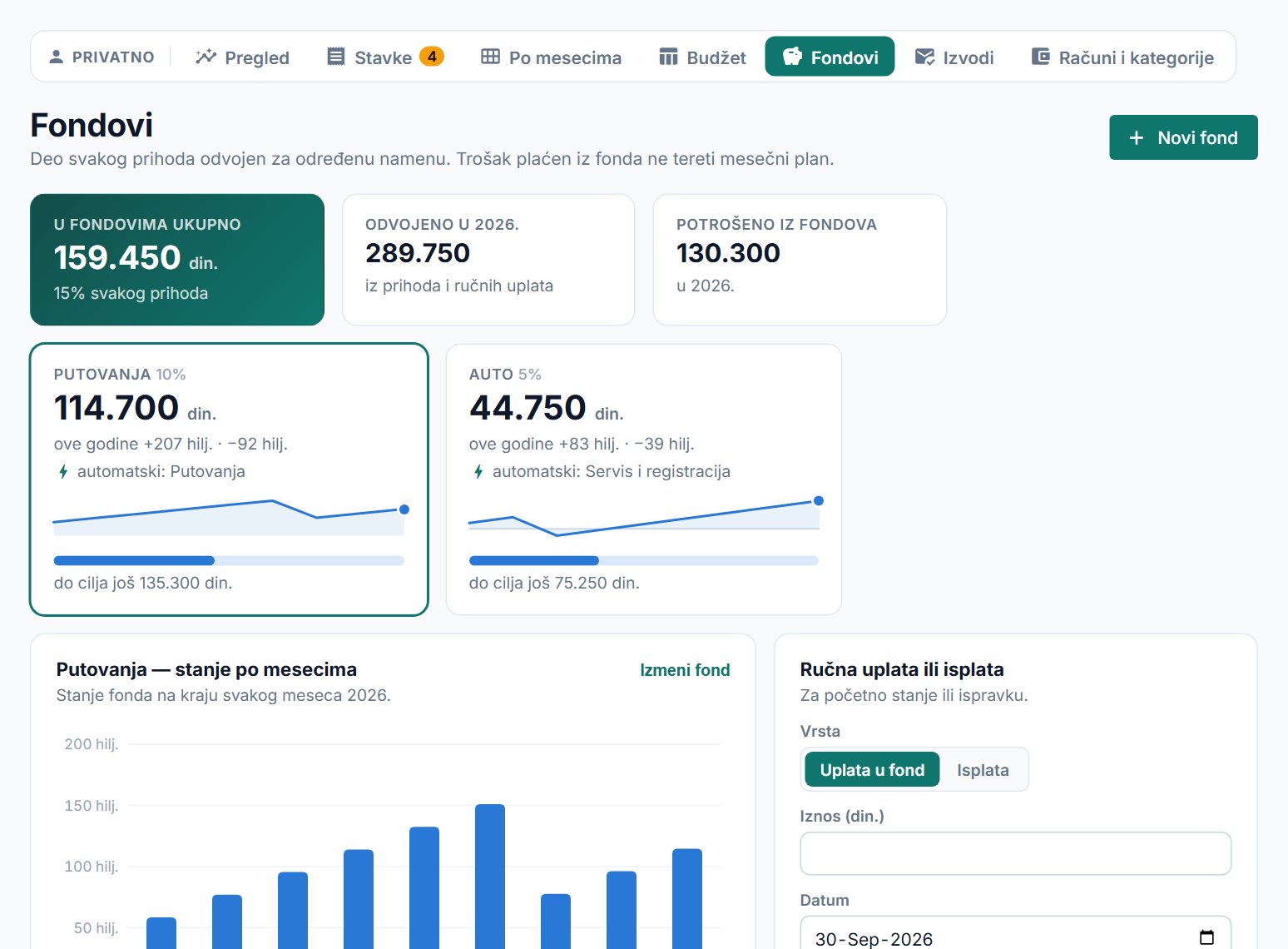
A fund is the part of every income you set aside for one purpose, for example travel or a car.
- New fund: name, percent of every income, a goal (optional) and the day it starts filling from.
- A fund is filled only by income from categories marked “This income fills funds” (by default “Isplata iz firme” (payout from the company) and “Zarada” (salary)). You change the mark on the Accounts and categories page.
- Under Automatically from this fund, choose a group or category of expenses. Such an expense is taken from the fund by itself and doesn’t count against the monthly plan. On an individual transaction you can do it by hand (the ⋮ menu → Paid from fund).
- By default a change of percentage applies only to new income. When editing the fund, under Percent applies, you can also choose From the fund’s start or From date. Then what has already been set aside is recalculated too.
- A manual deposit or withdrawal is for an opening balance or a correction. It doesn’t appear among transactions or in the budget, only in the Fund activity list, where you edit it with the pencil or delete it.
- A Transfer to another fund (same form) moves money from one fund to another on the same day, e.g. from Savings to Extra savings. The total balance of funds doesn’t change, nor do the percentages of income or what is invested in accounts. A transfer is deleted as a whole, from both funds.
- A fund’s money is in your accounts, so it is already included in the total balance. The fund just shows how much of it is set aside.
- When you put part of a fund into a term deposit or investments, the fund doesn’t go down. The fund card and the where the money is block show how much is deposited, how much is invested and how much is in account and available right away.
Term deposits and investments
Money you have put into a term deposit or invested in securities and funds has not been spent. Stavka keeps it as a separate account, so it still counts toward what you have.
- On the Accounts and categories page, add a New account of type Term deposit or Investments. Choose the fund the money belongs to, and for a term deposit also the Deposit until date.
- Enter what you deposited or invested earlier in the Already deposited or Already invested field, with Balance as of. If you also mark a transfer up to that day in Transactions, it isn’t counted twice — only later ones are added.
- Mark a new payment on the Transactions page: the ⋮ menu → Transfer to deposit or investments. If you entered the account number you pay into on the account, the transaction from the statement is recognized by itself. A payment abroad is chosen by hand.
- Such a payment is not an expense and doesn’t reduce the fund. The other side of the transfer is recorded on the deposit or investment account by itself, so Total you have stays the same.
- By default, the money deposited or invested is the money of that account’s fund. For a different fund, choose Fund money on the transaction.
- Interest is optional. Enter it the way the bank gives it, for the whole deposit term (for example 4.5% for six months), not the annual rate. Stavka then shows the expected interest: the deposited amount × that rate. It applies if you keep to the term.
- Before a deposit matures you get a notification: up to seven days in advance and once more when it matures.
- The balance of an investment account is the amount you invested. What the securities are worth now is shown next to it, once you record the purchases. That is the next section.
Securities and investment value
On an Investments account you record what you bought, and Stavka shows how many units you have, at what price, and what they are worth now.
- On the investment account card open Securities and purchases, then Add purchase. Enter the ticker (e.g. VWCE), date, price per unit and commission.
- You enter either the quantity or the total amount you paid. With the total amount, Stavka works out the quantity by itself. The line below the form shows the calculation before you save it.
- The same form is also used for a sale, dividend, interest, withholding tax and broker fee. You edit an entry you made by hand with the pencil, or delete it.
- The Securities table shows quantity, average purchase price, invested, last price, value and the difference as an amount and a percentage. Above it are paid in, cash at broker, total, and difference vs paid in.
- The price isn’t fetched from the stock exchange. You enter a new price with the pencil next to the price, for a day you choose. Until you enter a price, the value is at the last purchase price, and the screen says so.
- Interactive Brokers: you upload a Flex Query report in XML format as a file. Purchases, dividends, tax and prices are recorded by themselves, and what you already entered by hand isn’t duplicated. An entry from the report can’t be edited or deleted; only its note can be changed.
- Automatic download: enter the key (Flex Web Service token) and the query number (Query ID). Stavka then downloads the report by itself, once a day, and the Download now button does it right away and can take up to 40 seconds. How to create the query is explained on the screen itself.
- The key only allows reading reports. It cannot trade or move money. It is stored encrypted and is never shown again, and you stop the download with the Turn off download button.
- Dividends, interest, withholding tax and broker fees go into the budget and the Overview as income or an expense, in the categories “Kamata i dividende” (interest and dividends), “Porezi i takse” (taxes and fees) and “Naknade banke” (bank fees).
- Investment plan: in the account’s securities click Set up an investment plan, then enter the monthly amount and the month the plan applies from.
- The plan shows whether this month’s payment has been made or how much is still missing, and how far ahead or behind you are overall. Payments into the account count, and withdrawals reduce them. A short line about the plan is also on the account card.
- You change the plan with the Edit button and switch it off with Turn off. Payments and securities stay as they are.
- Total you have and funds stay at the amount invested. The current value is shown next to them: on the account card (worth …) and on the Overview, in the Savings and investments block.
- The Savings and investments block on the Overview adds up term deposits and investments: invested, worth now and difference, at the latest securities prices and today’s exchange rate. It is shown for the current year.
- In that block a term deposit is worth what was deposited until it matures. The expected interest at maturity is shown separately and isn’t included in worth now.
- A row in the block takes you to the account: a term deposit to the Accounts and categories page, and an investment straight to that account’s securities.
Accounts and categories
The accounts you track, your categories and remembered merchants.
- An account is usually created by itself with the first statement. You add a New account by hand for a bank Stavka doesn’t read yet, and for Cash, a Term deposit and Investments.
- The account number is used to recognize transfers between your accounts. For a foreign currency account, enter the exchange rate for converting to dinars.
- A group is a row in the charts, and a category is a row in the budget. Clicking a group’s name renames it, and + adds a category.
- Remembered merchants are created when you choose a category on a transaction. Deleting a rule doesn’t affect transactions that are already categorized.
- At the bottom of the page is Delete personal data. It deletes only the personal part; the business part stays. It can’t be undone.